Generate content for your store
Marketing content from products you've already generated, or the store policy pages every storefront needs — two different paths, one tool.
Content Generator does two different jobs, and it asks which one you want before anything else.
Choose a path
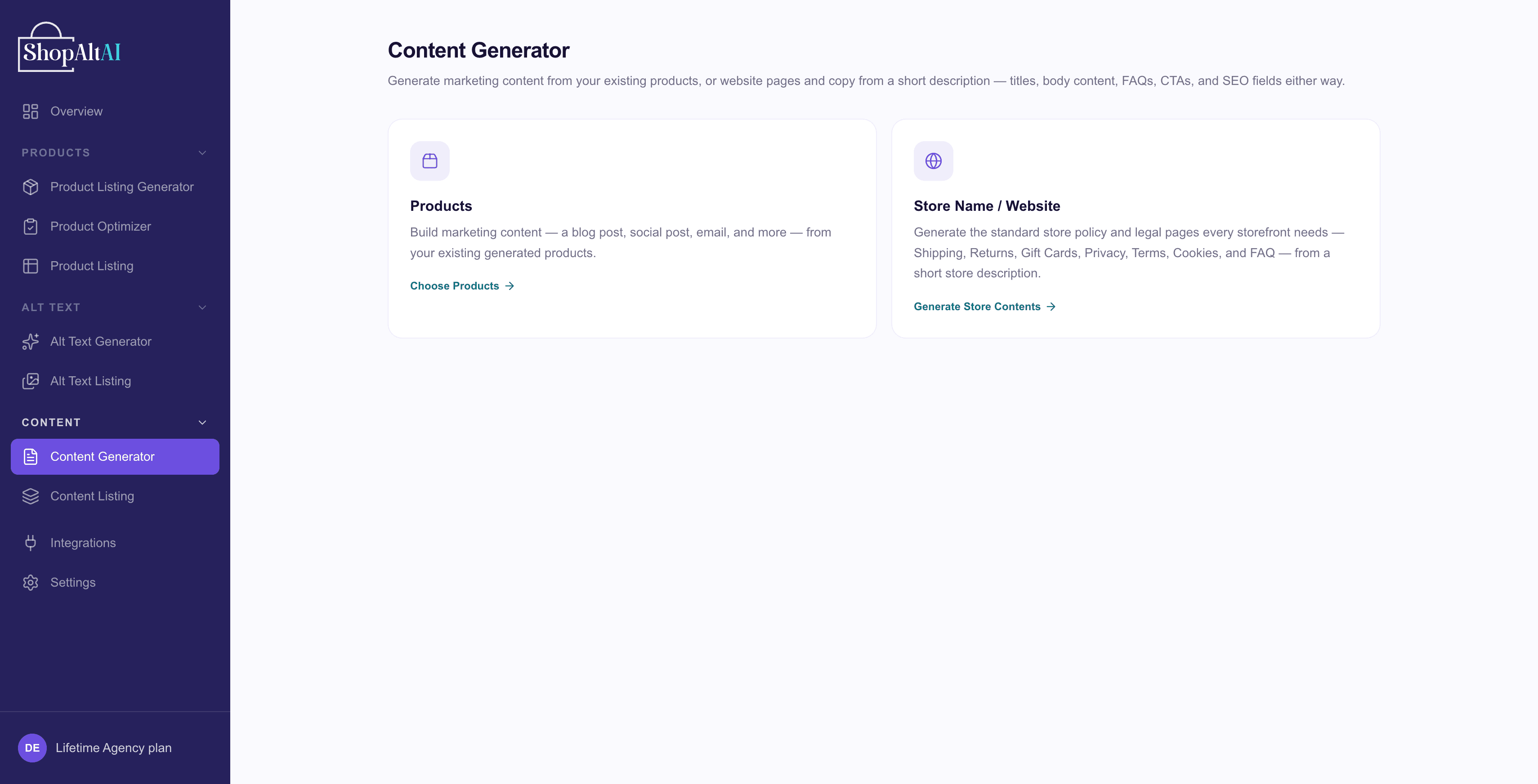
Go to Content → Content Generator. Two cards:
- Products — marketing content (blog post, social post, email, and more) built from products you've already generated in Product Listing
- Store Name / Website — the standard store policy and legal pages every storefront needs — Shipping, Returns, Gift Cards, Privacy, Terms, Cookies, and FAQ — from a short store description
Path 1: Products
- Choose Products
- Pick a Marketing content type: Blog Article, Social Media Post, Email Campaign, Product Promotion Content, or Landing Page Copy
Note: Products here means what you've already generated in Product Listing — this path doesn't take new photos. If you haven't generated any products yet, do that first.
Social Media Post requires choosing a platform — Facebook, LinkedIn, Twitter (X), or Instagram.
Email Campaign isn't one email. Choose All 5 campaigns for the whole sequence — Welcome, Best Sellers, New Arrivals, Special Offer, Last Chance — from one generation, or pick a single one.
- Tick the products this content is about, from the list of what you've already generated
- Add any Instructions (optional) — key messages, target audience, campaign objectives
- Click Generate
Note: There's no Tone or Language control on this path — just the Instructions field above. Tone of voice only appears on the Store Name/Website path below.
Path 2: Store Name / Website
- Choose Store Name / Website
- Add your Store URL (optional) — for your reference only, it's not fetched or scraped
- Add a Store description — what you sell, shipping, your return window, and so on — this grounds the page in your store's actual details rather than generic boilerplate
- Choose the page to generate: Shipping Policy, Returns & Exchanges, Gift Cards, Privacy Policy, Terms & Conditions, Cookie Policy, or FAQ
Set Tone of voice — the same options as Product Listing Generator — and Language (English only today), then add Additional instructions if you want anything specific covered.
- Click Generate
Note: Privacy Policy, Terms & Conditions, and Cookie Policy always carry a fixed disclaimer, regardless of what's generated: this is AI-generated content that hasn't been reviewed by a lawyer, and should be reviewed by a qualified legal professional before you publish it.
Review and edit
Either path lands on the same review screen — everything appears before you do anything with it.
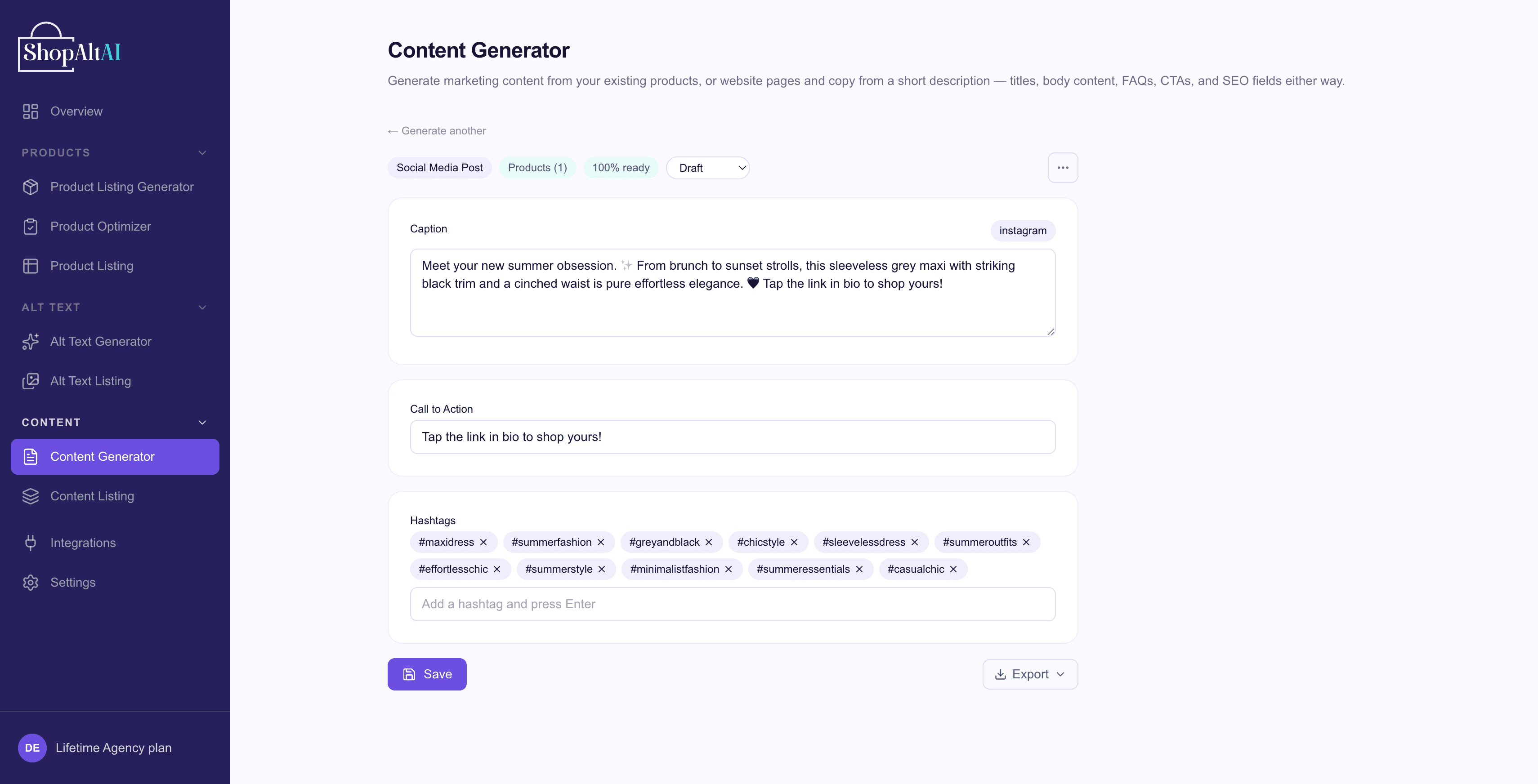
Pieces that have SEO fields come with them already written — title, meta description, keywords — so it's ready to publish rather than ready to start editing.
Edit anything, then Save. If one field is wrong, regenerate just that field rather than the whole piece — it costs less and keeps what already worked. Regenerate all is there too, if you want a fresh pass on everything.
Use it
- Copy any field to your clipboard
- Export from Content Listing — CSV, Word (.docx), PDF, HTML, or Markdown
- Everything you generate stays in Content Listing for 30 days, then it's deleted permanently — see Credits and plans
Nothing is published to your store automatically, on either path. Content Generator produces text for you to place where you want it.
Prefer to watch? See the video walkthrough.